
- Home
- Tutorials
- Git & GitHub Tutorial
- Managing Remotes
Git Remotes: Adding, Inspecting, Renaming & Managing Remote Origins
To collaborate with the world, your local repository must communicate with remote repositories hosted on platforms like GitHub, GitLab, or an internal enterprise server. A remote in Git is simply a friendly bookmark (an alias like origin) pointing to an external repository URL.
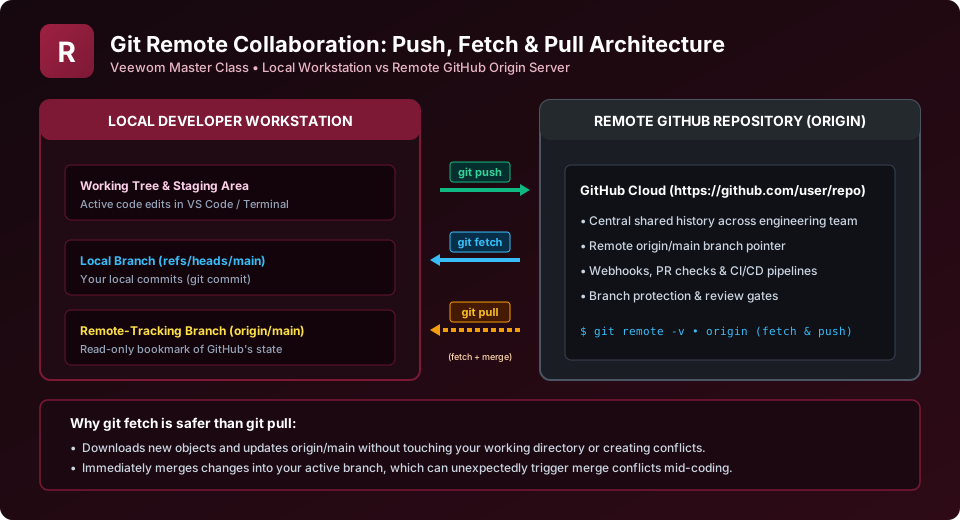
1. Inspecting Configured Remotes (git remote -v)
To view all remote connections configured for your local repository, run:
$ git remote -v
origin  https://github.com/username/my-project.git (fetch)
origin  https://github.com/username/my-project.git (push)
The -v flag stands for verbose, displaying the fetch and push URLs associated with each remote name.
2. Adding a New Remote (git remote add)
When you create a brand-new project locally using git init, it has zero remotes configured. To connect it to a new empty repository you created on GitHub:
# Add a remote named 'origin' pointing to your GitHub URL:
$ git remote add origin https://github.com/username/my-new-repo.git

# Or connect via SSH:
$ git remote add origin git@github.com:username/my-new-repo.git
3. Renaming and Removing Remotes
# Rename a remote from 'origin' to 'github':
$ git remote rename origin github

# Remove a remote connection:
$ git remote remove github
4. Updating a Remote's URL (git remote set-url)
If you transferred your repository to a new organization or switched authentication from HTTPS to SSH, update the remote URL without recreating it:
# Switch remote URL from HTTPS to SSH:
$ git remote set-url origin git@github.com:username/my-new-repo.git
5. Managing Multiple Remotes (e.g. Origin & Upstream)
In open-source workflows (covered in Class 32), you will frequently maintain two remotes:
origin: Points to your personal fork of the repository on GitHub.upstream: Points to the main original public repository.
$ git remote add upstream https://github.com/facebook/react.git
$ git remote -v
origin    git@github.com:my-username/react.git (fetch)
origin    git@github.com:my-username/react.git (push)
upstream  https://github.com/facebook/react.git (fetch)
upstream  https://github.com/facebook/react.git (push)
BCA University Viva Question
Question: "Is 'origin' a hardcoded keyword in Git?"
Answer: "No! 'origin' is simply the default alias Git assigns when you clone a repository. You could name your remote 'server', 'github', or 'prod'. However, using 'origin' is the ubiquitous industry standard."
Explore Related Git & GitHub Tutorials & Next Steps
Strengthen your version control mastery by studying these connected classes:
Synchronize code between your local repository and remote origin endpoints.
Link local branches to remote counterparts with the -u / --set-upstream flag.
Authenticate securely with GitHub remote URLs via public key cryptography.
Create, rename, transfer, and configure remote repository settings.
Frequently Asked Questions (FAQ) - Student & Interview Review
Next Step in Your Git & GitHub Learning Path:
Advance your software engineering skills with the next topic in our synchronized curriculum.
Continue to push, fetch & pull → Previous: ← git stash Operations | Full Syllabus


You may also like this!
© Veewom.com. | Managed by PinePL
